# System Guide

# Dashboard Screen

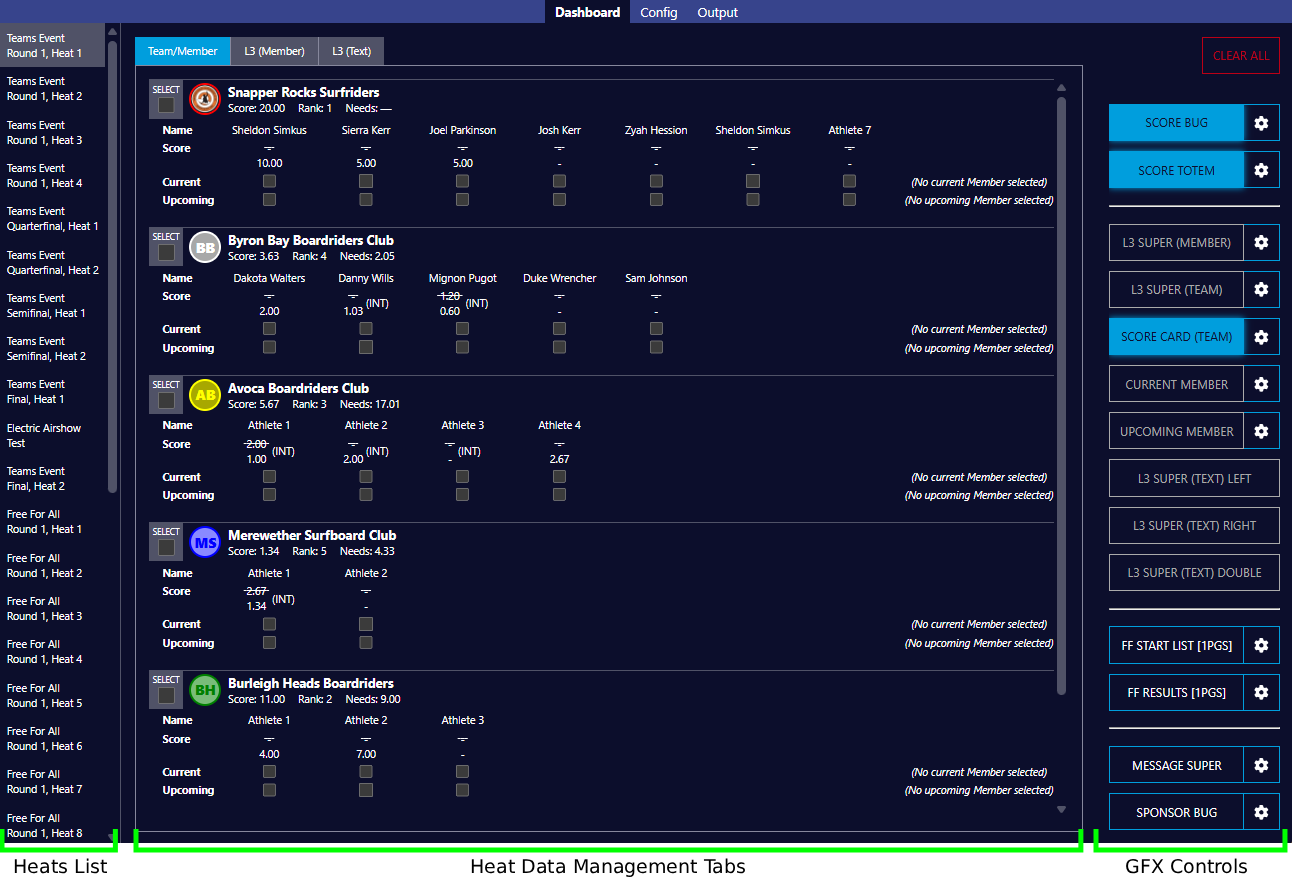
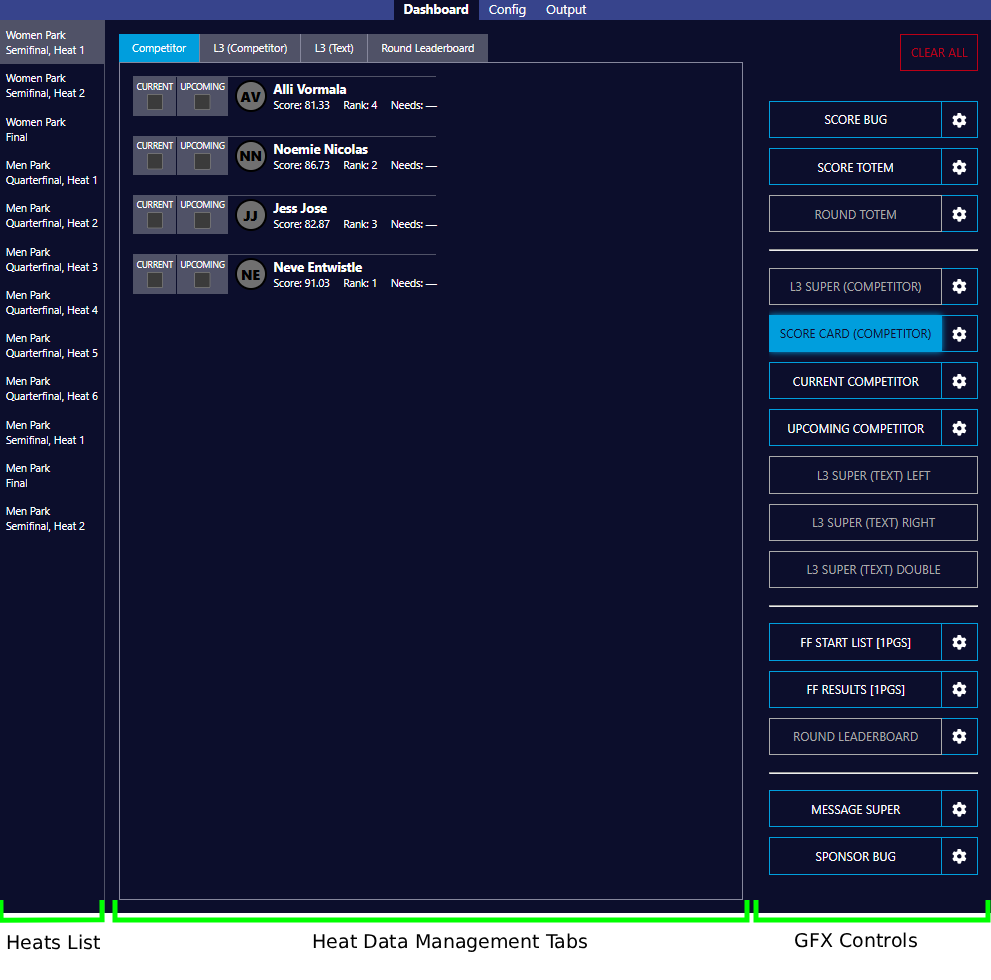
<table border="1" id="bkmrk-" style="border-collapse: collapse; width: 100%; height: 346.719px; border-width: 0px;"><colgroup><col style="width: 42.381%;"></col><col style="width: 57.619%;"></col></colgroup><tbody><tr style="height: 346.719px;"><td style="height: 346.719px; border-width: 0px;">[![dashboard_individuals_annotated.png](http://kb.lightningvisuals.com/uploads/images/gallery/2025-10/scaled-1680-/dashboard-individuals-annotated.png)](http://kb.lightningvisuals.com/uploads/images/gallery/2025-10/dashboard-individuals-annotated.png)</td><td style="height: 346.719px; border-width: 0px;">[![dashboard_teams_annotated.png](http://kb.lightningvisuals.com/uploads/images/gallery/2025-10/scaled-1680-/dashboard-teams-annotated.png)](http://kb.lightningvisuals.com/uploads/images/gallery/2025-10/dashboard-teams-annotated.png)</td></tr><tr><td class="align-center" style="border-width: 0px;">*Fig 1 - Individual Event View*</td><td class="align-center" style="border-width: 0px;">*Fig 2 - Team Event View*</td></tr></tbody></table>

### Heats List

- Lists your Event’s Heat data, as per your Live Heats dashboard
- All data changes made within Live Heats will be reflected here
- Requires a Draw to be produced and scheduled before it will appear within the GFX system

### Heat Data Management Tabs

#### **Individual Event (*****fig 1*****)**

- **Competitor Tab**
    
    
    - Here you can view the Competitors list for the selected Heat
    - This data reflects your Live Heats data
    - From here you can select your Current and Upcoming Competitors in order to trigger those related graphics
- **L3 (competitor) Tab**
    
    
    - As per the Competitor Tab, here you can view the Competitors list for the selected Heat
    - This view allows you to select a Competitor in order to trigger those related graphics

#### **Teams Event (*****fig 2*****)**

- **Team/Member Tab**
    
    
    - Here you can view the Teams and Team Members list for the selected Heat
    - This data reflects your Live Heats data
    - From here you can select a Team and Current/Upcoming Team Members in order to trigger related graphics
- **L3 (Member) Tab**
    
    
    - As per the Team/Member Tab, here you can view the Teams and Team Members list for the selected Heat
    - From here you can select a Team Member in order to trigger those related graphics

#### **All Event Types**

- **L3 (text) Tab**
    
    
    - This form allows you to create any number of one or two name super graphics, with optional second lines of text
    - To add a new super, enter the required info in the form at the bottom of the stack and then click the “+” icon
    - Entries in the stack can be color coded to allow easy grouping and identification using the color picker tool on the right of the item row

[![L3-Text.png](http://kb.lightningvisuals.com/uploads/images/gallery/2025-10/scaled-1680-/l3-text.png)](http://kb.lightningvisuals.com/uploads/images/gallery/2025-10/l3-text.png)![](blob:https://lightningvisuals.atlassian.net/3b4b7997-dce0-44b3-bce3-0045067826c9#media-blob-url=true&id=d4919da0-13f7-4fab-9c19-8b25537b840e&collection=contentId-364183553&contextId=364183553&width=624&height=252&alt=)

- - Entries can also be reordered via drag and drop using the grab icon on the left of the item row
    - Entries can be deleted using the Trash Can icon on the right of the item row
- **Round Leaderboard Tab**
    
    
    - Here you can view the Round Leaderboards for Live Heats events that are set up to have progression determined by Round placings as opposed to Heats
    - This setting is controlled within the Live Heats system

<span style="background-color: rgb(241, 196, 15);">*[![round_leaderboard.png](http://kb.lightningvisuals.com/uploads/images/gallery/2025-10/scaled-1680-/round-leaderboard.png)](http://kb.lightningvisuals.com/uploads/images/gallery/2025-10/round-leaderboard.png)*</span>

- - Selecting a leaderboard on this screen will allow you to trigger related graphics
    - Additionally, you are able to add a “progression cutoff” line to your Round Leaderboard by adding the number of athletes progressing for each round. Leaving this blank will remove the cutoff indicator for that particular round.
    - A global setting for the Cutoff Indicator is available within the Round Leaderboard button config menu within the GFX Control List.

### GFX Control List

- These are your GFX trigger buttons
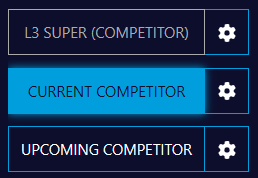
- Standard button states are as follows:

<table border="1" class="align-center" id="bkmrk-%C2%A0-disabled-buttons-h" style="border-collapse: collapse; width: 100%; border-width: 0px;"><colgroup><col style="width: 50.0596%;"></col><col style="width: 50.0596%;"></col></colgroup><tbody><tr><td rowspan="3" style="border-width: 0px;">[![button_states.png](http://kb.lightningvisuals.com/uploads/images/gallery/2025-10/scaled-1680-/button-states.png)](http://kb.lightningvisuals.com/uploads/images/gallery/2025-10/button-states.png)  
</td><td style="border-width: 0px;">- Disabled buttons have a grey border

</td></tr><tr><td style="border-width: 0px;">- Active buttons are blue

</td></tr><tr><td style="border-width: 0px;">- Enabled buttons have a blue border

</td></tr></tbody></table>

- If a graphic has configuration options available, a cog icon will appear next to the button as per the above examples.
- For graphics components that offer pagination, details of the number of pages will appear on the button
- To page through a multi-page component, simply press the blue button repeatedly.

[![pagination_buttons.png](http://kb.lightningvisuals.com/uploads/images/gallery/2025-10/scaled-1680-/pagination-buttons.png)](http://kb.lightningvisuals.com/uploads/images/gallery/2025-10/pagination-buttons.png)

- - The progress counter will update accordingly
- To close the component, simply click the red cross button
- Alternatively, the component will close once you have stepped through all pages and clicked the blue button again

# Configuration Screen

[![config_4.png](http://kb.lightningvisuals.com/uploads/images/gallery/2026-01/config-4.png)](http://kb.lightningvisuals.com/uploads/images/gallery/2025-11/config-3.png)

### Logo Management<span class="heading-anchor-wrapper" role="presentation"><button aria-hidden="true" class="css-vhh4ux" data-testid="anchor-button" type="button"><span aria-label="Copy" class="_1e0c1o8l _vchhusvi _1o9zidpf _vwz4kb7n _y4ti1igz _bozg1mb9 _12va1onz _jcxd1r8n" role="img"><svg class="_1reo15vq _18m915vq _syaz1r31 _lcxvglyw _s7n4yfq0 _vc881r31 _1bsbpxbi _4t3ipxbi" fill="none" role="presentation" viewbox="0 0 16 16"><path clip-rule="evenodd" d="M8.22 2.22a3.932 3.932 0 1 1 5.56 5.56l-2.25 2.25-1.06-1.06 2.25-2.25a2.432 2.432 0 0 0-3.44-3.44L7.03 5.53 5.97 4.47zm3.06 3.56-5.5 5.5-1.06-1.06 5.5-5.5zM2.22 8.22l2.25-2.25 1.06 1.06-2.25 2.25a2.432 2.432 0 0 0 3.44 3.44l2.25-2.25 1.06 1.06-2.25 2.25a3.932 3.932 0 1 1-5.56-5.56" fill="currentcolor" fill-rule="evenodd"></path></svg></span></button></span>

- ##### Event Logo
    
    
    - Use this control to upload your event logos
    - Only one logo can be active at one time but you are able to upload as many as you need and easily switch between them at the click of a button
    - Simply click the Event Logo button, select Upload, then add and Upload the image file on the form below
        
        <div class="rich-media-item mediaSingleView-content-wrap image-align-start css-5uoenq" data-media-vc-wrapper="true" data-node-type="mediaSingle" data-renderer-start-pos="3756" data-vc="media-single" data-width="408" data-width-type="pixel"><div class="css-zr4isv"><div data-alt="" data-collection="contentId-364183553" data-context-id="364183553" data-file-mime-type="" data-file-name="file" data-file-size="1" data-height="318" data-id="b4fdf80e-4c25-4952-8f32-25073d9dfdb0" data-node-type="media" data-renderer-start-pos="3757" data-type="file" data-width="396"><div class="_2rkofajl _vchhusvi _kqswh2mm _ect41gqc _p12f1osq _c71l1osq _1bsb1qmm _4t3ine4n _1hlmi3bv _1rquusvi _eg5410xm _mts3kb7n _1ntskb7n new-file-experience-wrapper" data-media-vc-wrapper="true" data-testid="media-card-view" id="bkmrk--2"><div class="_1reo15vq _18m915vq _2rkofajl _1e0c1txw _kqswh2mm _p12f1osq _1bsb1osq _4t3i1osq _c71l1osq media-file-card-view" data-test-media-name="att_7_for_364183553.png" data-test-progress="1" data-test-source="remote" data-test-status="complete" data-testid="media-file-card-view">  
        </div></div></div></div></div>[![event_logo_upload.png](http://kb.lightningvisuals.com/uploads/images/gallery/2025-10/scaled-1680-/event-logo-upload.png)](http://kb.lightningvisuals.com/uploads/images/gallery/2025-10/event-logo-upload.png)
- ##### Sponsor Logo
    
    
    - Use this control to upload your sponsorship assets
    - These can be single sponsor logos or a group of up to three logos that will automatically loop when on screen
    - Only one sponsorship asset can be visible at one time on the GFX output
    - Multiple sponsor assets can be uploaded in advance and switched between easily at the click of a button
    - Simply click the Sponsor Logo button, select Upload, then add and Upload the image file(s) on the form

<div class="inline-extension-renderer css-e2q2ep" id="bkmrk--3"><span class="css-6k4g17"><a class="css-5fsdr7" data-group="deeplink" data-testid="anchor-extension-handler-anchor" name="_jdvhx9yl2bcu"></a><a class="css-5fsdr7" data-group="deeplink" data-testid="anchor-extension-handler-anchor-legacy" name="LVLiveHeatsGFXSystemGuide-_jdvhx9yl2bcu"></a></span></div>### Global Settings<span class="heading-anchor-wrapper" role="presentation"><button aria-hidden="true" class="css-vhh4ux" data-testid="anchor-button" type="button"><span aria-label="Copy" class="_1e0c1o8l _vchhusvi _1o9zidpf _vwz4kb7n _y4ti1igz _bozg1mb9 _12va1onz _jcxd1r8n" role="img"><svg class="_1reo15vq _18m915vq _syaz1r31 _lcxvglyw _s7n4yfq0 _vc881r31 _1bsbpxbi _4t3ipxbi" fill="none" role="presentation" viewbox="0 0 16 16"><path clip-rule="evenodd" d="M8.22 2.22a3.932 3.932 0 1 1 5.56 5.56l-2.25 2.25-1.06-1.06 2.25-2.25a2.432 2.432 0 0 0-3.44-3.44L7.03 5.53 5.97 4.47zm3.06 3.56-5.5 5.5-1.06-1.06 5.5-5.5zM2.22 8.22l2.25-2.25 1.06 1.06-2.25 2.25a2.432 2.432 0 0 0 3.44 3.44l2.25-2.25 1.06 1.06-2.25 2.25a3.932 3.932 0 1 1-5.56-5.56" fill="currentcolor" fill-rule="evenodd"></path></svg></span></button></span>

[![global_settings.png](http://kb.lightningvisuals.com/uploads/images/gallery/2026-01/global-settings.png)](http://kb.lightningvisuals.com/uploads/images/gallery/2025-11/decimal-config-2.png)

- ##### Show Nationality Flags?
    
    
    - Use this configuration setting to show or hide country flags next to Competitors
    - If enabled, an Athlete’s nationality is based on the settings within your Live Heats event

- ##### Show Athlete Images?
    
    
    - Use this configuration setting to show or hide profile pics next to Competitors
    - If enabled, an Athlete’s associated picture will be passed through from your Live Heats event
- ##### Show Athlete Team Names?
    
    
    - Use this configuration setting to show or hide team names for Individual Competitors
    - This setting affects the Current, Upcoming, L3 (Competitor) and Score Card components
- ##### Show Bib Colors?
    
    
    - Use this configuration setting to show or hide bib colors for Individual Competitors
    - This setting affects the all components that show Competitor names
- ##### Show Bib Numbers?
    
    
    - Use this configuration setting to show or hide bib numbers for Individual Competitors
    - This setting affects the all components that show Competitor names
- ##### Num Decimal Places in Scores
    
    
    - Use this setting to control the number of DP's displayed for scores
    - The default from Liveheats is 2 DP
    - This setting will round up your scores, so use with caution unless you know your scores will always be whole numbers

- ##### Theme configuration
    
    
    - User-configurable theme controls are provided as below
    - Use the color pickers provided to adjust each color and see the changes in real-time

[![theme_controls_2.png](http://kb.lightningvisuals.com/uploads/images/gallery/2025-11/scaled-1680-/theme-controls-2.png)](http://kb.lightningvisuals.com/uploads/images/gallery/2025-11/theme-controls-2.png)

# Output Screen

[![output_2.png](http://kb.lightningvisuals.com/uploads/images/gallery/2025-10/scaled-1680-/output-2.png)](http://kb.lightningvisuals.com/uploads/images/gallery/2025-10/output-2.png)

- ##### Liveheats Event Link
    
    
    - This link allows you to identify which Liveheats event the GFX system is paired with
    - Clicking this link will take you directly to the event in Liveheats
- ##### Reload
    
    
    - This button allows you to force a reload of the GFX output within the system
- ##### Graphics Test
    
    
    - Display a GFX test pattern
- ##### Opacity Test
    
    
    - Display an opacity test
- ##### Chroma Key Setup
    
    
    - This allows the setup of a user-defined chroma key
    - Use the color picker provided to choose the required key color
- ##### Preview Window
    
    
    - This view is identical to the GFX output being used within the broadcast