# Liveheats x Lightning Visuals GFX

# System Guide

# Dashboard Screen

<table border="1" id="bkmrk-" style="border-collapse: collapse; width: 100%; height: 346.719px; border-width: 0px;"><colgroup><col style="width: 42.381%;"></col><col style="width: 57.619%;"></col></colgroup><tbody><tr style="height: 346.719px;"><td style="height: 346.719px; border-width: 0px;">[![dashboard_individuals_annotated.png](http://kb.lightningvisuals.com/uploads/images/gallery/2025-10/scaled-1680-/dashboard-individuals-annotated.png)](http://kb.lightningvisuals.com/uploads/images/gallery/2025-10/dashboard-individuals-annotated.png)</td><td style="height: 346.719px; border-width: 0px;">[![dashboard_teams_annotated.png](http://kb.lightningvisuals.com/uploads/images/gallery/2025-10/scaled-1680-/dashboard-teams-annotated.png)](http://kb.lightningvisuals.com/uploads/images/gallery/2025-10/dashboard-teams-annotated.png)</td></tr><tr><td class="align-center" style="border-width: 0px;">*Fig 1 - Individual Event View*</td><td class="align-center" style="border-width: 0px;">*Fig 2 - Team Event View*</td></tr></tbody></table>

### Heats List

- Lists your Event’s Heat data, as per your Live Heats dashboard
- All data changes made within Live Heats will be reflected here
- Requires a Draw to be produced and scheduled before it will appear within the GFX system

### Heat Data Management Tabs

#### **Individual Event (*****fig 1*****)**

- **Competitor Tab**
    
    
    - Here you can view the Competitors list for the selected Heat
    - This data reflects your Live Heats data
    - From here you can select your Current and Upcoming Competitors in order to trigger those related graphics
- **L3 (competitor) Tab**
    
    
    - As per the Competitor Tab, here you can view the Competitors list for the selected Heat
    - This view allows you to select a Competitor in order to trigger those related graphics

#### **Teams Event (*****fig 2*****)**

- **Team/Member Tab**
    
    
    - Here you can view the Teams and Team Members list for the selected Heat
    - This data reflects your Live Heats data
    - From here you can select a Team and Current/Upcoming Team Members in order to trigger related graphics
- **L3 (Member) Tab**
    
    
    - As per the Team/Member Tab, here you can view the Teams and Team Members list for the selected Heat
    - From here you can select a Team Member in order to trigger those related graphics

#### **All Event Types**

- **L3 (text) Tab**
    
    
    - This form allows you to create any number of one or two name super graphics, with optional second lines of text
    - To add a new super, enter the required info in the form at the bottom of the stack and then click the “+” icon
    - Entries in the stack can be color coded to allow easy grouping and identification using the color picker tool on the right of the item row

[![L3-Text.png](http://kb.lightningvisuals.com/uploads/images/gallery/2025-10/scaled-1680-/l3-text.png)](http://kb.lightningvisuals.com/uploads/images/gallery/2025-10/l3-text.png)![](blob:https://lightningvisuals.atlassian.net/3b4b7997-dce0-44b3-bce3-0045067826c9#media-blob-url=true&id=d4919da0-13f7-4fab-9c19-8b25537b840e&collection=contentId-364183553&contextId=364183553&width=624&height=252&alt=)

- - Entries can also be reordered via drag and drop using the grab icon on the left of the item row
    - Entries can be deleted using the Trash Can icon on the right of the item row
- **Round Leaderboard Tab**
    
    
    - Here you can view the Round Leaderboards for Live Heats events that are set up to have progression determined by Round placings as opposed to Heats
    - This setting is controlled within the Live Heats system

<span style="background-color: rgb(241, 196, 15);">*[![round_leaderboard.png](http://kb.lightningvisuals.com/uploads/images/gallery/2025-10/scaled-1680-/round-leaderboard.png)](http://kb.lightningvisuals.com/uploads/images/gallery/2025-10/round-leaderboard.png)*</span>

- - Selecting a leaderboard on this screen will allow you to trigger related graphics
    - Additionally, you are able to add a “progression cutoff” line to your Round Leaderboard by adding the number of athletes progressing for each round. Leaving this blank will remove the cutoff indicator for that particular round.
    - A global setting for the Cutoff Indicator is available within the Round Leaderboard button config menu within the GFX Control List.

### GFX Control List

- These are your GFX trigger buttons
- Standard button states are as follows:

<table border="1" class="align-center" id="bkmrk-%C2%A0-disabled-buttons-h" style="border-collapse: collapse; width: 100%; border-width: 0px;"><colgroup><col style="width: 50.0596%;"></col><col style="width: 50.0596%;"></col></colgroup><tbody><tr><td rowspan="3" style="border-width: 0px;">[![button_states.png](http://kb.lightningvisuals.com/uploads/images/gallery/2025-10/scaled-1680-/button-states.png)](http://kb.lightningvisuals.com/uploads/images/gallery/2025-10/button-states.png)  
</td><td style="border-width: 0px;">- Disabled buttons have a grey border

</td></tr><tr><td style="border-width: 0px;">- Active buttons are blue

</td></tr><tr><td style="border-width: 0px;">- Enabled buttons have a blue border

</td></tr></tbody></table>

- If a graphic has configuration options available, a cog icon will appear next to the button as per the above examples.
- For graphics components that offer pagination, details of the number of pages will appear on the button
- To page through a multi-page component, simply press the blue button repeatedly.

[![pagination_buttons.png](http://kb.lightningvisuals.com/uploads/images/gallery/2025-10/scaled-1680-/pagination-buttons.png)](http://kb.lightningvisuals.com/uploads/images/gallery/2025-10/pagination-buttons.png)

- - The progress counter will update accordingly
- To close the component, simply click the red cross button
- Alternatively, the component will close once you have stepped through all pages and clicked the blue button again

# Configuration Screen

[![config_4.png](http://kb.lightningvisuals.com/uploads/images/gallery/2026-01/config-4.png)](http://kb.lightningvisuals.com/uploads/images/gallery/2025-11/config-3.png)

### Logo Management<span class="heading-anchor-wrapper" role="presentation"><button aria-hidden="true" class="css-vhh4ux" data-testid="anchor-button" type="button"><span aria-label="Copy" class="_1e0c1o8l _vchhusvi _1o9zidpf _vwz4kb7n _y4ti1igz _bozg1mb9 _12va1onz _jcxd1r8n" role="img"><svg class="_1reo15vq _18m915vq _syaz1r31 _lcxvglyw _s7n4yfq0 _vc881r31 _1bsbpxbi _4t3ipxbi" fill="none" role="presentation" viewbox="0 0 16 16"><path clip-rule="evenodd" d="M8.22 2.22a3.932 3.932 0 1 1 5.56 5.56l-2.25 2.25-1.06-1.06 2.25-2.25a2.432 2.432 0 0 0-3.44-3.44L7.03 5.53 5.97 4.47zm3.06 3.56-5.5 5.5-1.06-1.06 5.5-5.5zM2.22 8.22l2.25-2.25 1.06 1.06-2.25 2.25a2.432 2.432 0 0 0 3.44 3.44l2.25-2.25 1.06 1.06-2.25 2.25a3.932 3.932 0 1 1-5.56-5.56" fill="currentcolor" fill-rule="evenodd"></path></svg></span></button></span>

- ##### Event Logo
    
    
    - Use this control to upload your event logos
    - Only one logo can be active at one time but you are able to upload as many as you need and easily switch between them at the click of a button
    - Simply click the Event Logo button, select Upload, then add and Upload the image file on the form below
        
        <div class="rich-media-item mediaSingleView-content-wrap image-align-start css-5uoenq" data-media-vc-wrapper="true" data-node-type="mediaSingle" data-renderer-start-pos="3756" data-vc="media-single" data-width="408" data-width-type="pixel"><div class="css-zr4isv"><div data-alt="" data-collection="contentId-364183553" data-context-id="364183553" data-file-mime-type="" data-file-name="file" data-file-size="1" data-height="318" data-id="b4fdf80e-4c25-4952-8f32-25073d9dfdb0" data-node-type="media" data-renderer-start-pos="3757" data-type="file" data-width="396"><div class="_2rkofajl _vchhusvi _kqswh2mm _ect41gqc _p12f1osq _c71l1osq _1bsb1qmm _4t3ine4n _1hlmi3bv _1rquusvi _eg5410xm _mts3kb7n _1ntskb7n new-file-experience-wrapper" data-media-vc-wrapper="true" data-testid="media-card-view" id="bkmrk--2"><div class="_1reo15vq _18m915vq _2rkofajl _1e0c1txw _kqswh2mm _p12f1osq _1bsb1osq _4t3i1osq _c71l1osq media-file-card-view" data-test-media-name="att_7_for_364183553.png" data-test-progress="1" data-test-source="remote" data-test-status="complete" data-testid="media-file-card-view">  
        </div></div></div></div></div>[![event_logo_upload.png](http://kb.lightningvisuals.com/uploads/images/gallery/2025-10/scaled-1680-/event-logo-upload.png)](http://kb.lightningvisuals.com/uploads/images/gallery/2025-10/event-logo-upload.png)
- ##### Sponsor Logo
    
    
    - Use this control to upload your sponsorship assets
    - These can be single sponsor logos or a group of up to three logos that will automatically loop when on screen
    - Only one sponsorship asset can be visible at one time on the GFX output
    - Multiple sponsor assets can be uploaded in advance and switched between easily at the click of a button
    - Simply click the Sponsor Logo button, select Upload, then add and Upload the image file(s) on the form

<div class="inline-extension-renderer css-e2q2ep" id="bkmrk--3"><span class="css-6k4g17"><a class="css-5fsdr7" data-group="deeplink" data-testid="anchor-extension-handler-anchor" name="_jdvhx9yl2bcu"></a><a class="css-5fsdr7" data-group="deeplink" data-testid="anchor-extension-handler-anchor-legacy" name="LVLiveHeatsGFXSystemGuide-_jdvhx9yl2bcu"></a></span></div>### Global Settings<span class="heading-anchor-wrapper" role="presentation"><button aria-hidden="true" class="css-vhh4ux" data-testid="anchor-button" type="button"><span aria-label="Copy" class="_1e0c1o8l _vchhusvi _1o9zidpf _vwz4kb7n _y4ti1igz _bozg1mb9 _12va1onz _jcxd1r8n" role="img"><svg class="_1reo15vq _18m915vq _syaz1r31 _lcxvglyw _s7n4yfq0 _vc881r31 _1bsbpxbi _4t3ipxbi" fill="none" role="presentation" viewbox="0 0 16 16"><path clip-rule="evenodd" d="M8.22 2.22a3.932 3.932 0 1 1 5.56 5.56l-2.25 2.25-1.06-1.06 2.25-2.25a2.432 2.432 0 0 0-3.44-3.44L7.03 5.53 5.97 4.47zm3.06 3.56-5.5 5.5-1.06-1.06 5.5-5.5zM2.22 8.22l2.25-2.25 1.06 1.06-2.25 2.25a2.432 2.432 0 0 0 3.44 3.44l2.25-2.25 1.06 1.06-2.25 2.25a3.932 3.932 0 1 1-5.56-5.56" fill="currentcolor" fill-rule="evenodd"></path></svg></span></button></span>

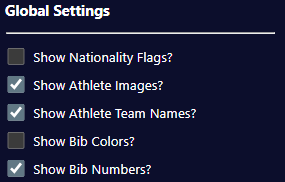
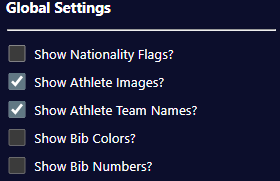
[![global_settings.png](http://kb.lightningvisuals.com/uploads/images/gallery/2026-01/global-settings.png)](http://kb.lightningvisuals.com/uploads/images/gallery/2025-11/decimal-config-2.png)

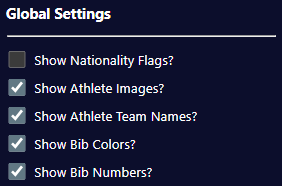
- ##### Show Nationality Flags?
    
    
    - Use this configuration setting to show or hide country flags next to Competitors
    - If enabled, an Athlete’s nationality is based on the settings within your Live Heats event

- ##### Show Athlete Images?
    
    
    - Use this configuration setting to show or hide profile pics next to Competitors
    - If enabled, an Athlete’s associated picture will be passed through from your Live Heats event
- ##### Show Athlete Team Names?
    
    
    - Use this configuration setting to show or hide team names for Individual Competitors
    - This setting affects the Current, Upcoming, L3 (Competitor) and Score Card components
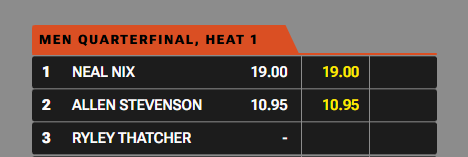
- ##### Show Bib Colors?
    
    
    - Use this configuration setting to show or hide bib colors for Individual Competitors
    - This setting affects the all components that show Competitor names
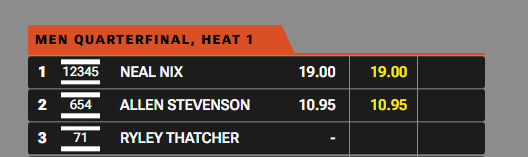
- ##### Show Bib Numbers?
    
    
    - Use this configuration setting to show or hide bib numbers for Individual Competitors
    - This setting affects the all components that show Competitor names
- ##### Num Decimal Places in Scores
    
    
    - Use this setting to control the number of DP's displayed for scores
    - The default from Liveheats is 2 DP
    - This setting will round up your scores, so use with caution unless you know your scores will always be whole numbers

- ##### Theme configuration
    
    
    - User-configurable theme controls are provided as below
    - Use the color pickers provided to adjust each color and see the changes in real-time

[![theme_controls_2.png](http://kb.lightningvisuals.com/uploads/images/gallery/2025-11/scaled-1680-/theme-controls-2.png)](http://kb.lightningvisuals.com/uploads/images/gallery/2025-11/theme-controls-2.png)

# Output Screen

[![output_2.png](http://kb.lightningvisuals.com/uploads/images/gallery/2025-10/scaled-1680-/output-2.png)](http://kb.lightningvisuals.com/uploads/images/gallery/2025-10/output-2.png)

- ##### Liveheats Event Link
    
    
    - This link allows you to identify which Liveheats event the GFX system is paired with
    - Clicking this link will take you directly to the event in Liveheats
- ##### Reload
    
    
    - This button allows you to force a reload of the GFX output within the system
- ##### Graphics Test
    
    
    - Display a GFX test pattern
- ##### Opacity Test
    
    
    - Display an opacity test
- ##### Chroma Key Setup
    
    
    - This allows the setup of a user-defined chroma key
    - Use the color picker provided to choose the required key color
- ##### Preview Window
    
    
    - This view is identical to the GFX output being used within the broadcast

# Component Overview

# Score Bug

##### Component

[![score_bug_annotated.png](http://kb.lightningvisuals.com/uploads/images/gallery/2025-10/scaled-1680-/score-bug-annotated.png)](http://kb.lightningvisuals.com/uploads/images/gallery/2025-10/score-bug-annotated.png)

##### Overview

<table border="1" id="bkmrk-component-element-so" style="border-collapse: collapse; width: 100%; height: 178.781px;"><colgroup><col style="width: 7.9857%;"></col><col style="width: 35.7569%;"></col><col style="width: 56.2574%;"></col></colgroup><thead><tr style="height: 29.7969px;"><td style="height: 29.7969px;">  
</td><td style="height: 29.7969px;">Component Element</td><td style="height: 29.7969px;">Source</td></tr></thead><tbody><tr style="height: 29.7969px;"><td style="height: 29.7969px;">1</td><td style="height: 29.7969px;">Event Logo</td><td style="height: 29.7969px;">Uploaded in Config tab</td></tr><tr style="height: 29.7969px;"><td style="height: 29.7969px;">2</td><td style="height: 29.7969px;">Event Title</td><td style="height: 29.7969px;">Editable in Liveheats System</td></tr><tr style="height: 29.7969px;"><td style="height: 29.7969px;">3</td><td style="height: 29.7969px;">Sponsor Logo(s)</td><td style="height: 29.7969px;">Uploaded in Config tab</td></tr><tr style="height: 29.7969px;"><td style="height: 29.7969px;">4</td><td style="height: 29.7969px;">Heat / Run Clock</td><td style="height: 29.7969px;">Editable in Liveheats System</td></tr><tr style="height: 29.7969px;"><td style="height: 29.7969px;">5</td><td style="height: 29.7969px;">Event Stage</td><td style="height: 29.7969px;">Editable in Liveheats System</td></tr></tbody></table>

##### Configuration Options

[![score_bug_config_annotated.png](http://kb.lightningvisuals.com/uploads/images/gallery/2025-11/scaled-1680-/score-bug-config-annotated.png)](http://kb.lightningvisuals.com/uploads/images/gallery/2025-11/score-bug-config-annotated.png)

# Score Totem

##### Component

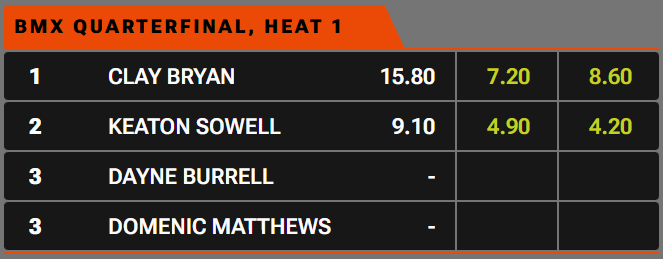
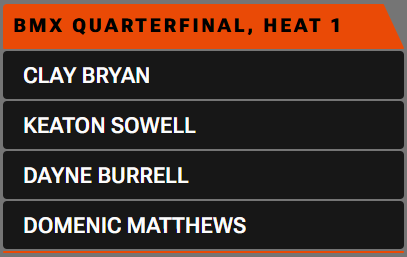
[![score_totem_example.png](http://kb.lightningvisuals.com/uploads/images/gallery/2026-01/score-totem-example.png)](http://kb.lightningvisuals.com/uploads/images/gallery/2025-10/score-totem-annotated.png)

##### Overview

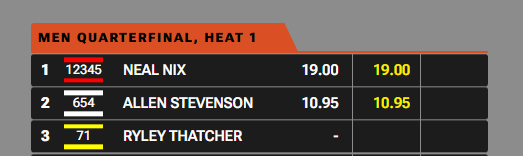
<table border="1" id="bkmrk-component-element-1-" style="border-collapse: collapse; width: 100%; height: 178.781px;"><colgroup><col style="width: 5.48272%;"></col><col style="width: 30.2933%;"></col><col style="width: 64.224%;"></col></colgroup><thead><tr style="height: 29.7969px;"><td style="height: 29.7969px;">  
</td><td style="height: 29.7969px;">Component Element</td><td style="height: 29.7969px;">Source</td></tr></thead><tbody><tr style="height: 29.7969px;"><td style="height: 29.7969px;">1</td><td style="height: 29.7969px;">Event Stage</td><td style="height: 29.7969px;">Editable in Liveheats system</td></tr><tr style="height: 29.7969px;"><td style="height: 29.7969px;">2</td><td style="height: 29.7969px;">Rank</td><td style="height: 29.7969px;">Calculated in Liveheats system</td></tr><tr><td>3</td><td>Bib details</td><td>Editable in Liveheats system (color and number)</td></tr><tr style="height: 29.7969px;"><td style="height: 29.7969px;">4</td><td style="height: 29.7969px;">Competitor Name</td><td style="height: 29.7969px;">Editable in Liveheats system</td></tr><tr style="height: 29.7969px;"><td style="height: 29.7969px;">5</td><td style="height: 29.7969px;">Score</td><td style="height: 29.7969px;">Calculated in Liveheats system</td></tr><tr style="height: 29.7969px;"><td style="height: 29.7969px;">6</td><td style="height: 29.7969px;">Runs</td><td style="height: 29.7969px;">Calculated in Liveheats system</td></tr></tbody></table>

##### Configuration Options

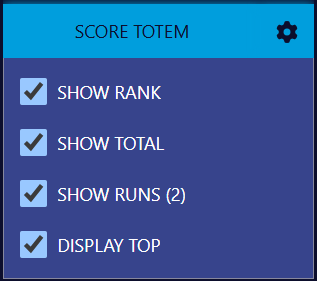
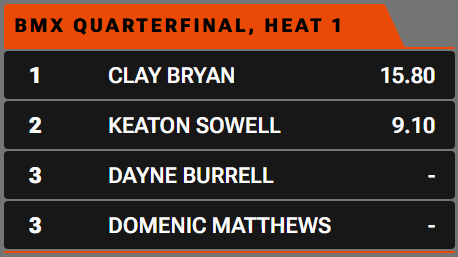
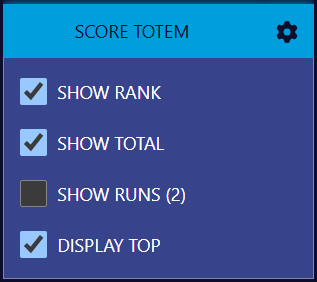
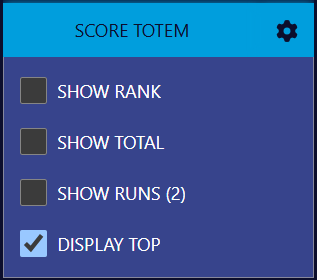
<table border="1" id="bkmrk--2" style="border-collapse: collapse; width: 100%; border-width: 0px; height: 697.312px;"><colgroup><col style="width: 64.7199%;"></col><col style="width: 35.2801%;"></col></colgroup><tbody><tr style="height: 28.7969px;"><td style="border-width: 0px; height: 28.7969px;">**Example 1. (local config)**</td><td style="border-width: 0px; height: 28.7969px;">  
</td></tr><tr style="height: 192.609px;"><td style="border-width: 0px; height: 192.609px;">[![score_totem_full.png](http://kb.lightningvisuals.com/uploads/images/gallery/2025-10/scaled-1680-/score-totem-full.png)](http://kb.lightningvisuals.com/uploads/images/gallery/2025-10/score-totem-full.png)</td><td style="border-width: 0px; height: 192.609px;">[![score_totem_config_full.png](http://kb.lightningvisuals.com/uploads/images/gallery/2025-10/scaled-1680-/score-totem-config-full.png)](http://kb.lightningvisuals.com/uploads/images/gallery/2025-10/score-totem-config-full.png)</td></tr><tr style="height: 28.7969px;"><td style="border-width: 0px; height: 28.7969px;">**Example 2. (local config)**</td><td style="border-width: 0px; height: 28.7969px;">  
</td></tr><tr style="height: 192.328px;"><td style="border-width: 0px; height: 192.328px;">[![score_totem_result.png](http://kb.lightningvisuals.com/uploads/images/gallery/2025-10/scaled-1680-/score-totem-result.png)](http://kb.lightningvisuals.com/uploads/images/gallery/2025-10/score-totem-result.png)</td><td style="border-width: 0px; height: 192.328px;">[![score_totem_config_result.png](http://kb.lightningvisuals.com/uploads/images/gallery/2025-10/scaled-1680-/score-totem-config-result.png)](http://kb.lightningvisuals.com/uploads/images/gallery/2025-10/score-totem-config-result.png)</td></tr><tr style="height: 28.7969px;"><td style="border-width: 0px; height: 28.7969px;">**Example 3. (local config)**</td><td style="border-width: 0px; height: 28.7969px;">  
</td></tr><tr style="height: 225.984px;"><td style="border-width: 0px; height: 225.984px;">[![score_totem_start.png](http://kb.lightningvisuals.com/uploads/images/gallery/2025-10/scaled-1680-/score-totem-start.png)](http://kb.lightningvisuals.com/uploads/images/gallery/2025-10/score-totem-start.png)

</td><td style="border-width: 0px; height: 225.984px;">[![score_totem_config_start.png](http://kb.lightningvisuals.com/uploads/images/gallery/2025-10/scaled-1680-/score-totem-config-start.png)](http://kb.lightningvisuals.com/uploads/images/gallery/2025-10/score-totem-config-start.png)

</td></tr><tr><td style="border-width: 0px;">**Example 4. (Global settings)**

</td><td style="border-width: 0px;"></td></tr><tr><td style="border-width: 0px;">[![score_totem_bibs_all_on_example.png](http://kb.lightningvisuals.com/uploads/images/gallery/2026-01/scaled-1680-/4kdscore-totem-bibs-all-on-example.png)](http://kb.lightningvisuals.com/uploads/images/gallery/2026-01/4kdscore-totem-bibs-all-on-example.png)

</td><td style="border-width: 0px;">[![score_totem_bibs_all_on.png](http://kb.lightningvisuals.com/uploads/images/gallery/2026-01/scaled-1680-/nw8score-totem-bibs-all-on.png)](http://kb.lightningvisuals.com/uploads/images/gallery/2026-01/nw8score-totem-bibs-all-on.png)

</td></tr><tr><td style="border-width: 0px;">**Example 5. (Global settings)**</td><td style="border-width: 0px;"></td></tr><tr><td style="border-width: 0px;">[![score_totem_bib_number_only_example.png](http://kb.lightningvisuals.com/uploads/images/gallery/2026-01/scaled-1680-/EFnscore-totem-bib-number-only-example.png)](http://kb.lightningvisuals.com/uploads/images/gallery/2026-01/EFnscore-totem-bib-number-only-example.png)

</td><td style="border-width: 0px;">[![score_totem_bib_number_only.png](http://kb.lightningvisuals.com/uploads/images/gallery/2026-01/scaled-1680-/Yvoscore-totem-bib-number-only.png)](http://kb.lightningvisuals.com/uploads/images/gallery/2026-01/Yvoscore-totem-bib-number-only.png)

</td></tr><tr><td style="border-width: 0px;">**Example 6. (Global settings)**

</td><td style="border-width: 0px;"></td></tr><tr><td style="border-width: 0px;">[![score_totem_bibs_off_example.png](http://kb.lightningvisuals.com/uploads/images/gallery/2026-01/scaled-1680-/exescore-totem-bibs-off-example.png)](http://kb.lightningvisuals.com/uploads/images/gallery/2026-01/exescore-totem-bibs-off-example.png)

</td><td style="border-width: 0px;">[![score_totem_bibs_off.png](http://kb.lightningvisuals.com/uploads/images/gallery/2026-01/scaled-1680-/0Hqscore-totem-bibs-off.png)](http://kb.lightningvisuals.com/uploads/images/gallery/2026-01/0Hqscore-totem-bibs-off.png)

</td></tr></tbody></table>

##### Notes

- "Display Top" Configuration Option (6) 
    - This component is designed to be anchored to either the top or the bottom of the screen
    - Use configuration option #6 to switch between TOP and BOTTOM
    - If used in conjunction with the Score Bug, when anchored to the TOP the Event Stage title will be hidden automatically
- The number of runs displayed within the expanded totem is derived from the "Max Rides" setting within the Liveheats system

# Round Totem

Coming soon

# L3 Super (Competitor)

Coming soon

# Score Card (Competitor)

##### Component

[![scorecard_example.png](http://kb.lightningvisuals.com/uploads/images/gallery/2026-01/scorecard-example.png)](http://kb.lightningvisuals.com/uploads/images/gallery/2025-10/score-totem-annotated.png)

##### Overview

<table border="1" id="bkmrk-component-element-1-" style="border-collapse: collapse; width: 100%; height: 178.781px;"><colgroup><col style="width: 5.48272%;"></col><col style="width: 30.2741%;"></col><col style="width: 64.2431%;"></col></colgroup><thead><tr style="height: 29.7969px;"><td style="height: 29.7969px;">  
</td><td style="height: 29.7969px;">Component Element</td><td style="height: 29.7969px;">Source</td></tr></thead><tbody><tr style="height: 29.7969px;"><td style="height: 29.7969px;">1</td><td style="height: 29.7969px;">Event Stage</td><td style="height: 29.7969px;">Editable in Liveheats system</td></tr><tr style="height: 29.7969px;"><td style="height: 29.7969px;">2</td><td style="height: 29.7969px;">Needs score</td><td style="height: 29.7969px;">Calculated in Liveheats system</td></tr><tr style="height: 29.7969px;"><td style="height: 29.7969px;">3</td><td style="height: 29.7969px;">Runs + Categories</td><td style="height: 29.7969px;">Calculated in Liveheats system. Layout configurable in GFX system</td></tr></tbody></table>

##### Configuration Options

<table border="1" id="bkmrk--2" style="border-collapse: collapse; width: 100%; border-width: 0px; height: 697.312px;"><colgroup><col style="width: 64.7199%;"></col><col style="width: 35.2801%;"></col></colgroup><tbody><tr style="height: 28.7969px;"><td style="border-width: 0px; height: 28.7969px;">**Example 1. (local config)**</td><td style="border-width: 0px; height: 28.7969px;">  
</td></tr><tr style="height: 192.609px;"><td style="border-width: 0px; height: 192.609px;">  
</td><td style="border-width: 0px; height: 192.609px;">  
</td></tr><tr style="height: 28.7969px;"><td style="border-width: 0px; height: 28.7969px;">**Example 2. (local config)**</td><td style="border-width: 0px; height: 28.7969px;">  
</td></tr><tr style="height: 192.328px;"><td style="border-width: 0px; height: 192.328px;">  
</td><td style="border-width: 0px; height: 192.328px;">  
</td></tr><tr style="height: 28.7969px;"><td style="border-width: 0px; height: 28.7969px;">**Example 3. (local config)**</td><td style="border-width: 0px; height: 28.7969px;">  
</td></tr><tr style="height: 225.984px;"><td style="border-width: 0px; height: 225.984px;">  
</td><td style="border-width: 0px; height: 225.984px;">  
</td></tr><tr><td style="border-width: 0px;">**Example 4. (Global settings)**

</td><td style="border-width: 0px;"></td></tr><tr><td style="border-width: 0px;">  
</td><td style="border-width: 0px;">[![score_totem_bibs_all_on.png](http://kb.lightningvisuals.com/uploads/images/gallery/2026-01/scaled-1680-/nw8score-totem-bibs-all-on.png)](http://kb.lightningvisuals.com/uploads/images/gallery/2026-01/nw8score-totem-bibs-all-on.png)

</td></tr><tr><td style="border-width: 0px;">**Example 5. (Global settings)**</td><td style="border-width: 0px;"></td></tr><tr><td style="border-width: 0px;">  
</td><td style="border-width: 0px;">[![score_totem_bib_number_only.png](http://kb.lightningvisuals.com/uploads/images/gallery/2026-01/scaled-1680-/Yvoscore-totem-bib-number-only.png)](http://kb.lightningvisuals.com/uploads/images/gallery/2026-01/Yvoscore-totem-bib-number-only.png)

</td></tr><tr><td style="border-width: 0px;">**Example 6. (Global settings)**

</td><td style="border-width: 0px;"></td></tr><tr><td style="border-width: 0px;">  
</td><td style="border-width: 0px;">[![score_totem_bibs_off.png](http://kb.lightningvisuals.com/uploads/images/gallery/2026-01/scaled-1680-/0Hqscore-totem-bibs-off.png)](http://kb.lightningvisuals.com/uploads/images/gallery/2026-01/0Hqscore-totem-bibs-off.png)

</td></tr></tbody></table>

##### Notes

# Current Competitor

Coming soon

# Upcoming Competitor

Coming soon

# L3 Super (Text)

Coming soon

# Full Frame Start List

Coming soon

# Full Frame Results

Coming soon

# Message Super

Coming soon

# Sponsor Bug

Coming soon

# FAQ

# FAQ

<details id="bkmrk-my-lightning-visuals"><summary>My Lightning Visuals dashboard is empty and not showing any Liveheats event data</summary>

- **Has your Event been drawn yet in Liveheats?**

Data will not flow through from the Liveheats system to the Lightning Visuals system until a draw has been made within Liveheats

- **Is the correct Event linked to your GFX?**

You can confirm which Liveheats Event ID is in use within the GFX system by navigating to the Output tab and checking the Event ID. If this does not match your expected Event, please contact Liveheats Support.

[![image.png](http://kb.lightningvisuals.com/uploads/images/gallery/2025-10/scaled-1680-/image.png)](http://kb.lightningvisuals.com/uploads/images/gallery/2025-10/image.png)

</details><details id="bkmrk-how-do-i-add-my-grap"><summary>How do i add my graphics to my stream?</summary>

During your onboarding you will have received two URLs; one for the Operator Dashboard and one for the GFX Overlay

You can use the GFX Overlay URL as a browser source in OBS, vMix, Ecamm Live, Grabyo &amp; more. Any streaming software that can take a browser as a source will work with Lightning Visuals GFX.

For more info on specific third-party software please use the following links:

- [OBS](https://obsproject.com/)
- [vMix](https://www.vmix.com/)
- [Ecamm Live](https://www.ecamm.com/mac/ecammlive/)
- [Grabyo](https://about.grabyo.com/)

</details>