Configuration Screen
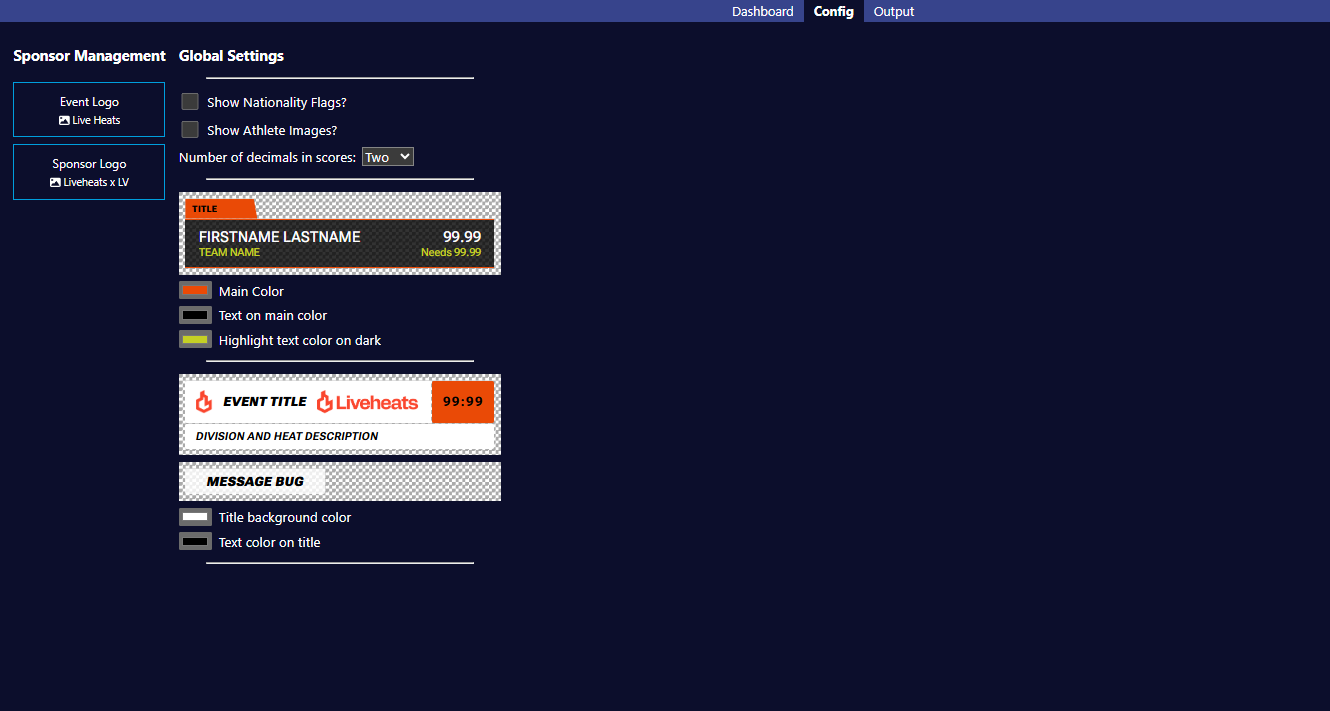
Logo Management
-
Event Logo
-
Use this control to upload your event logos
-
Only one logo can be active at one time but you are able to upload as many as you need and easily switch between them at the click of a button
-
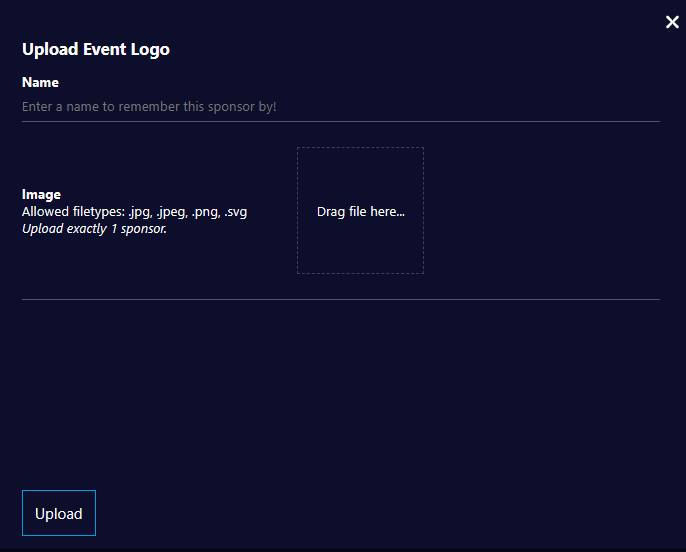
Simply click the Event Logo button, select Upload, then add and Upload the image file on the form below
-
-
Sponsor Logo
-
Use this control to upload your sponsorship assets
-
These can be single sponsor logos or a group of up to three logos that will automatically loop when on screen
-
Only one sponsorship asset can be visible at one time on the GFX output
-
Multiple sponsor assets can be uploaded in advance and switched between easily at the click of a button
-
Simply click the Sponsor Logo button, select Upload, then add and Upload the image file(s) on the form
-
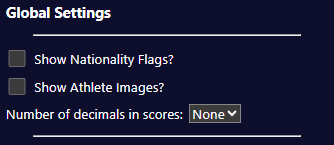
Global Settings
-
Show Nationality Flags?
-
Use this configuration setting to show or hide country flags next to Competitors
-
If enabled, an Athlete’s nationality is based on the settings within your Live Heats event
-
-
Show Athlete Images?
-
Use this configuration setting to show or hide profile pics next to Competitors
-
If enabled, an Athlete’s associated picture will be passed through from your Live Heats event
-
-
Num Decimal Places in Scores
-
Use this setting to control the number of DP's displayed for scores
-
The default from Liveheats is 2 DP
- This setting will round up your scores, so use with caution unless you know your scores will always be whole numbers
-
-
Theme configuration
-
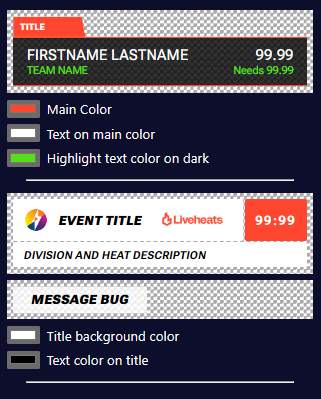
User-configurable theme controls are provided as below
-
Use the color pickers provided to adjust each color and see the changes in real-time
-